
AlphaSynth AI
Forge Desktop — the AI-native workspace for building, managing, and launching modern apps.
Build locally with orchestrated AI workflows, visual editing, live preview, Git versioning, and launch tools — all in one Windows workspace connected to your Forge account.
Forge account required for AI features
Windows downloads are temporarily unavailable. Please check back soon or contact support.
Recommended for most users
Forge Desktop is in beta. Some features are evolving quickly. Windows SmartScreen may show a warning until the app gains reputation.
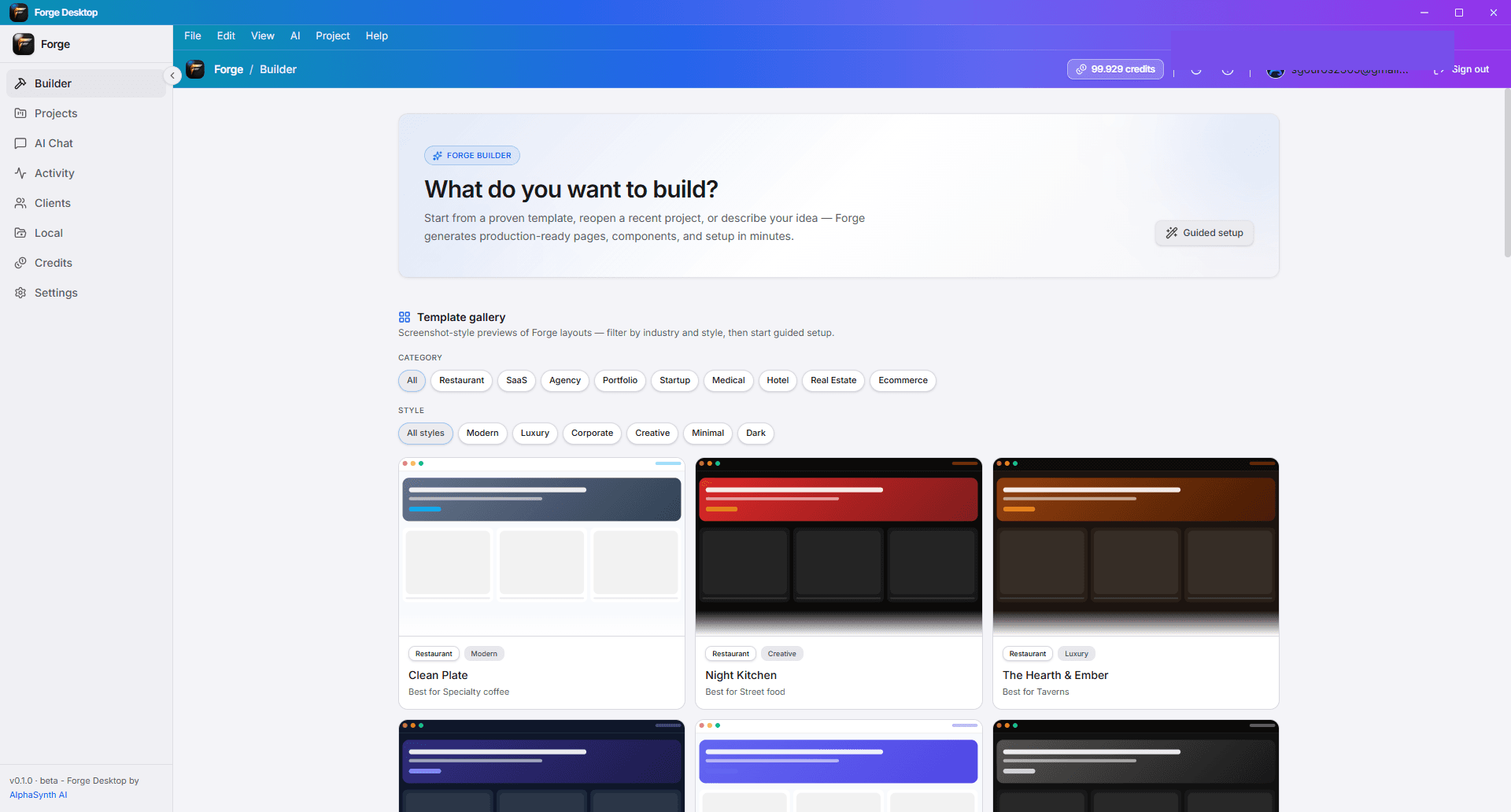
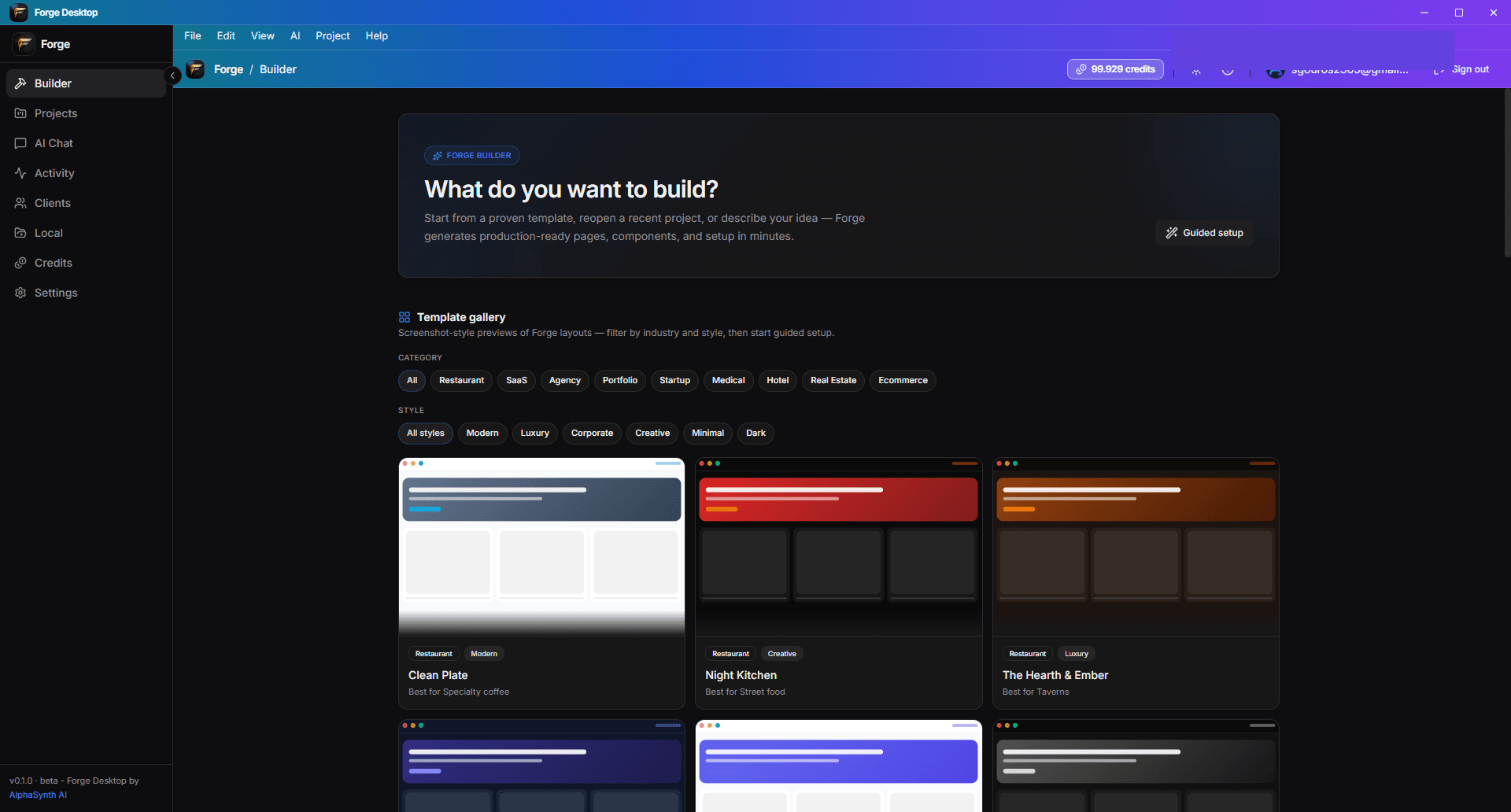
More than an AI website builder.
Forge Desktop is a full workspace for founders and builders who want AI speed without losing control — from first prompt to launch checklist.
See the workspace
Explore the surfaces that make Forge Desktop a complete build-and-ship environment. Replace placeholders with real screenshots in public/desktop/.
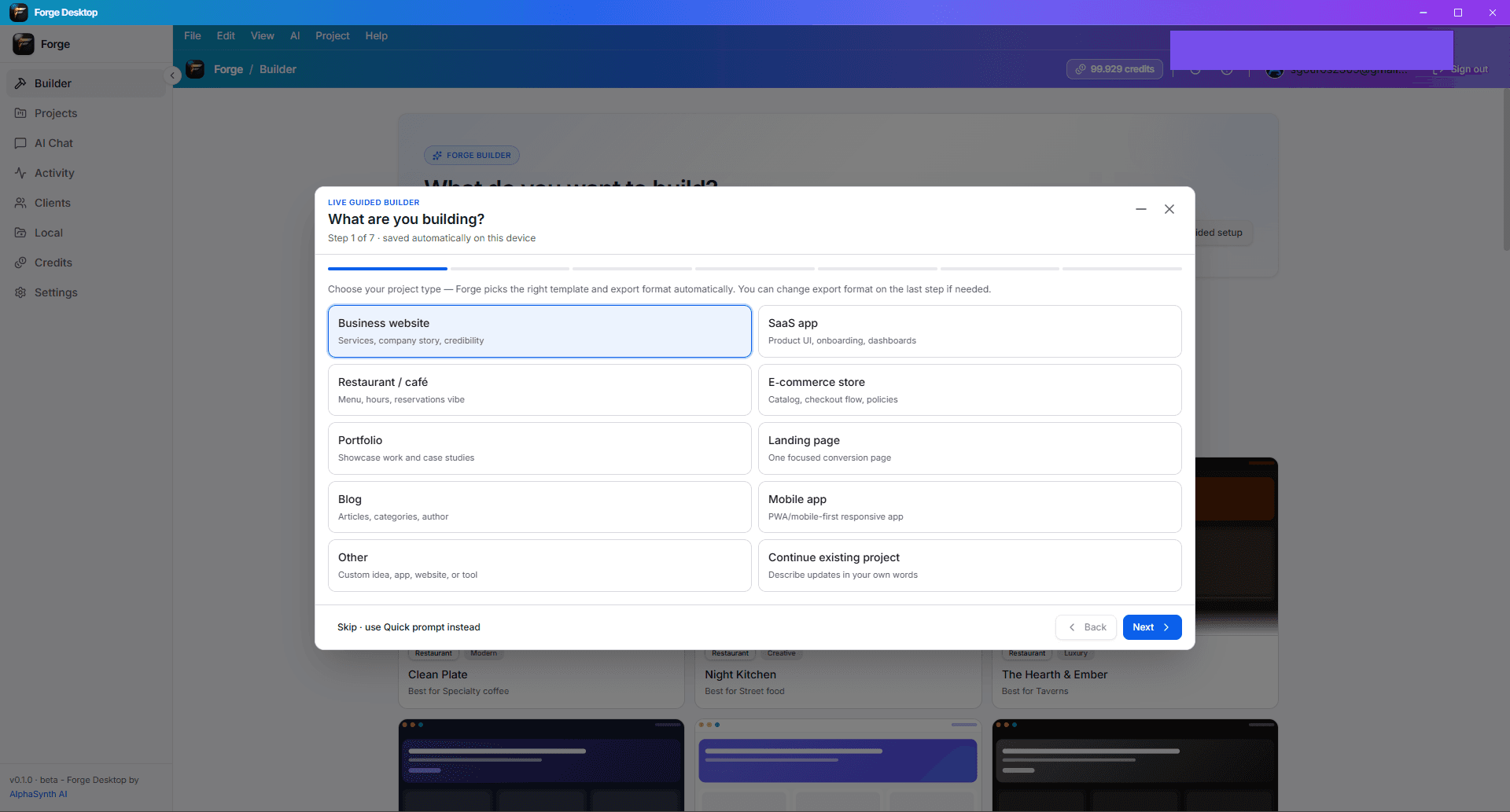
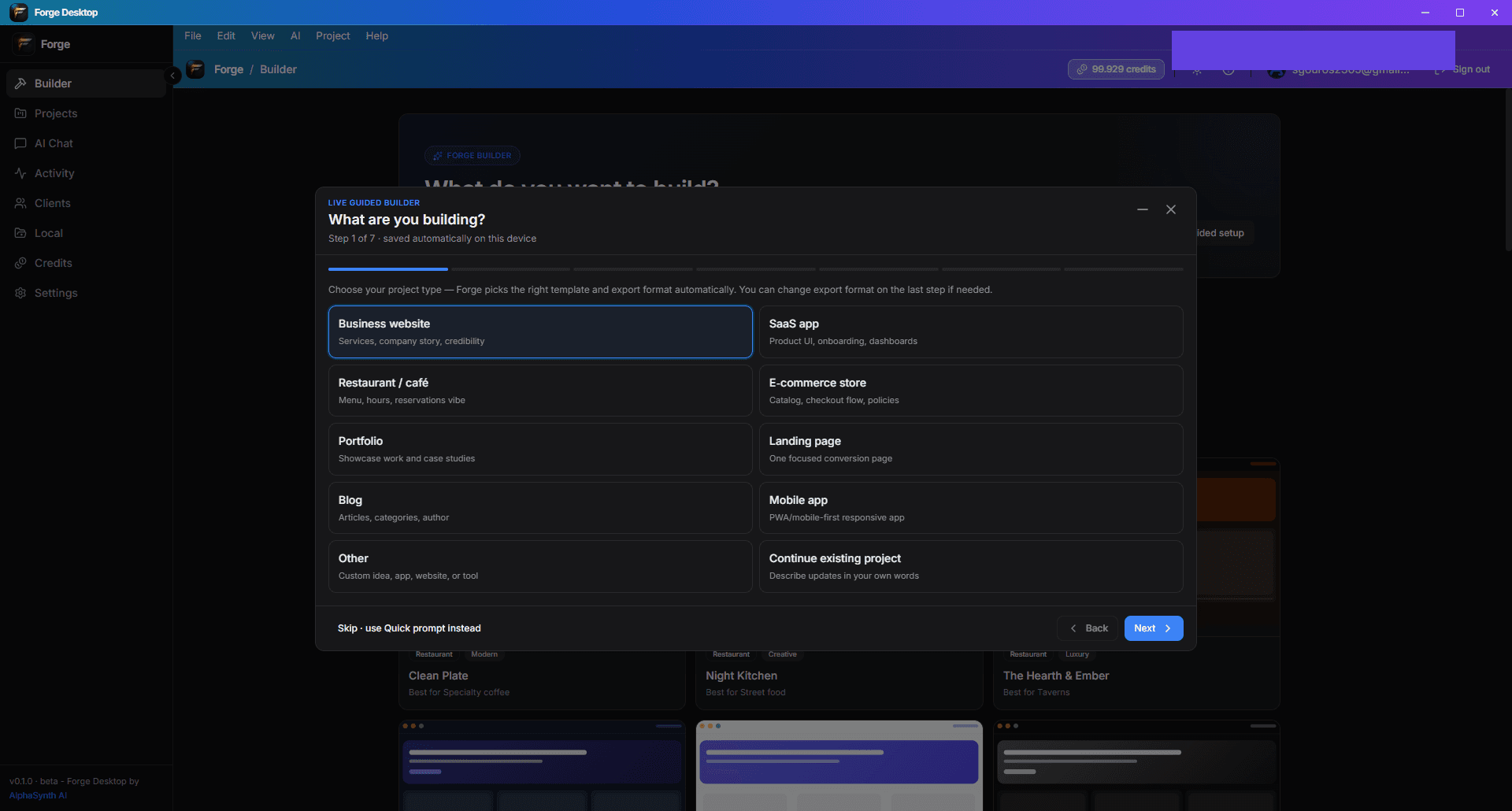
Built to build, code, manage, and launch
Forge Desktop beta includes a broad toolkit — some areas are still maturing. Expect rapid updates during beta.
Build
From guided setup to visual iteration — create interfaces and flows faster.
Code
A local IDE experience with AI assistance and Git-backed versioning.
Manage
Keep context, decisions, and progress organized inside the project.
Launch
Readiness checks and deployment intelligence to help you ship responsibly.
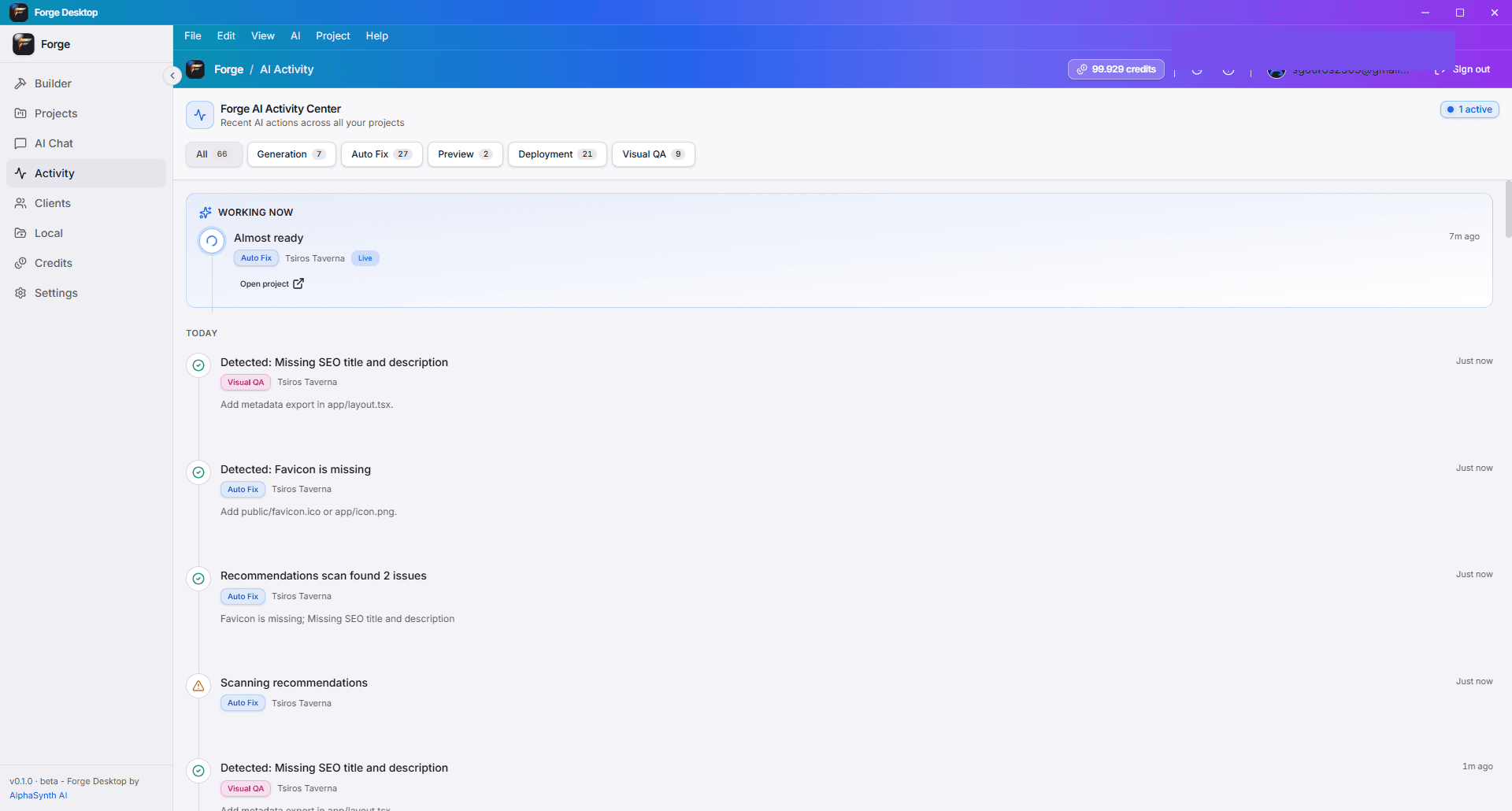
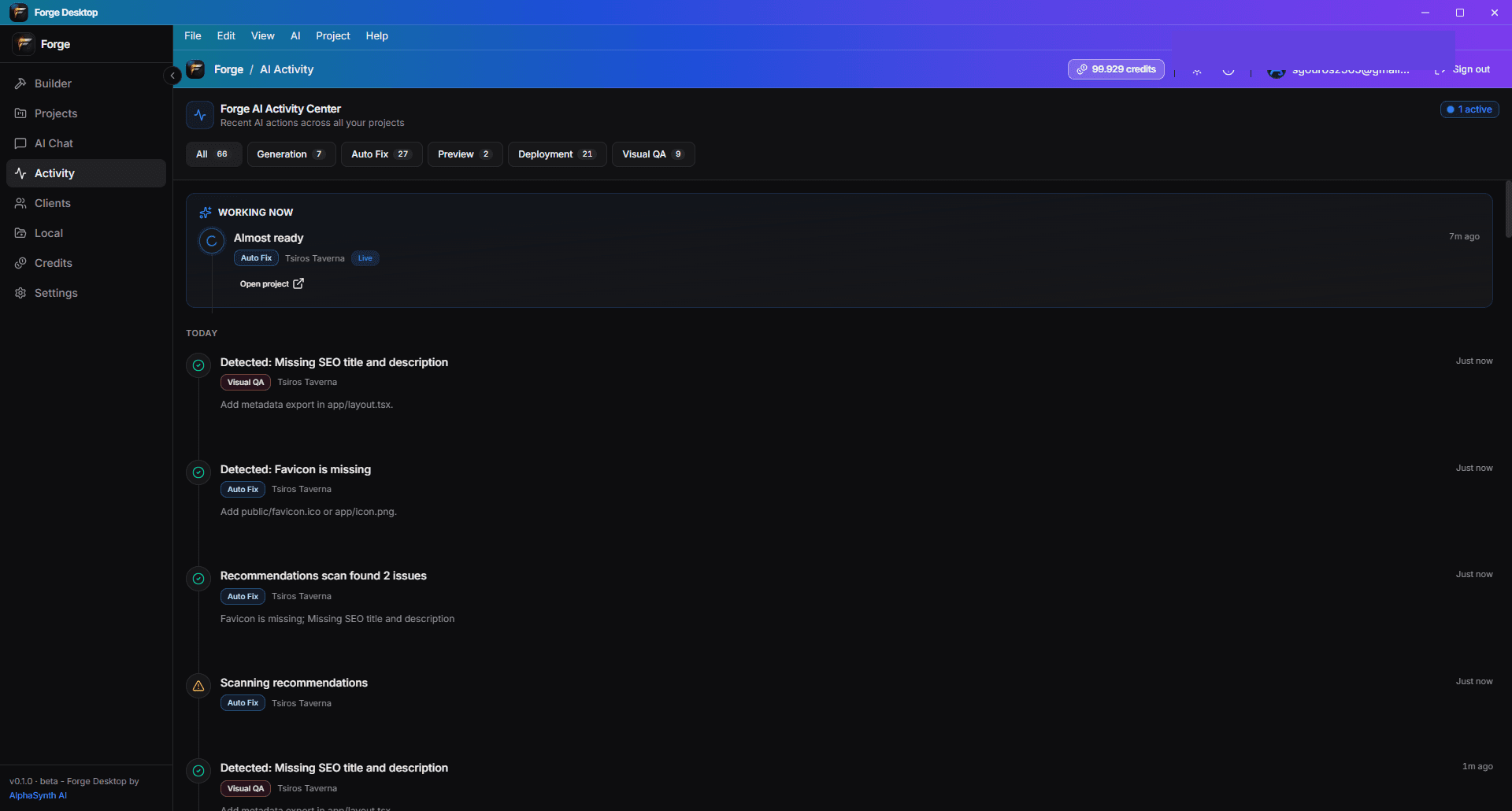
AI that works like a team.
Forge Desktop uses orchestrated AI workflows — not fully autonomous parallel agents. The Supervisor routes planning, implementation, and review steps you can follow in the Activity Timeline.
- General AI Chat for brainstorming, specs, and copy.
- Planner and Project Agent roles for scoped, contextual edits.
- Supervisor Agent plans and routes work across the right tools.
- Visual QA and repair flows to catch UI issues early.
- Activity Timeline shows what AI did and when.
One Forge account — web and desktop
Sign in with Google or email. Credits and plans are managed on forge.alphasynthai.com and sync when you connect in the desktop app.
Get Forge Desktop for Windows
Install from GitHub Releases — no account needed to download. Sign in after install to unlock AI features and sync credits.
- Download Forge Desktop Setup or MSI
- Open the installer
- Follow the Windows installation steps
- Launch Forge Desktop
- Sign in with your Forge account
Windows downloads are temporarily unavailable. Please check back soon or contact support.
System requirements
Forge Desktop beta targets modern Windows PCs. macOS and Linux are on the roadmap — not available in this release.
- Windows 10 version 1903 or later, or Windows 11 (64-bit)
- 8 GB RAM minimum (16 GB recommended for large projects)
- 2 GB free disk space for app, caches, and project files
- Internet required for sign-in, AI generation, credits sync, and updates
- Git recommended for versioning and GitHub publishing
- Node.js recommended for tooling in generated projects (varies by stack)
- Microsoft Edge WebView2 runtime (installed by setup if missing)
Common questions
Quick answers about downloads, accounts, beta expectations, and policies.
Is Forge Desktop free?
Yes — the app is free to install during beta. AI features consume Forge credits; see Pricing for Free, Builder, Pro, and Studio allowances.
Do I need a Forge account?
You need a Forge account to use AI features, sync credits, and connect billing. Download and install do not require an account.
How do credits work?
Desktop AI draws from the same credit balance as the website. Purchase plans or packs on the web; balances update when you sign in on desktop.
Does it work offline?
You can browse local files and edit offline. Sign-in, AI generation, and credit sync require internet.
Where are projects stored?
Projects live in folders you choose on your machine. Forge does not replace your local file ownership — back up and use Git as you would in any IDE.
Can I use GitHub?
Yes. Connect repositories, commit, and publish from Forge Desktop. GitHub authentication follows standard OAuth/device flows.
Can I upload screenshots and images?
Yes — guided builder and media flows support image uploads where the feature is enabled. Files are validated before upload.
Does it support Google login?
Yes. Sign in with Google or email/password — the same options as forge.alphasynthai.com.
Is Mac or Linux available?
Not in this beta. Windows 10/11 x64 only; other platforms are planned.
How do I report bugs?
Use in-app feedback when available, or contact us via the website Contact page. Include your app version from About or the title bar.
Why does SmartScreen show a warning?
New and beta apps often lack Windows reputation at first. Verify the download from our GitHub release, then use “More info” → “Run anyway” if you trust the build.
Where are legal and privacy policies?
Terms and Privacy live on this website. Forge Desktop follows the same policies; links are in the Trust section below and in-app where applicable.
Policies and support
Forge Desktop follows the same terms, privacy, and billing policies as the Forge website.
Ready to build on your machine?
Download Forge Desktop for Windows, sign in with your Forge account, and start with Guided Builder or Quick Prompt.
Windows downloads are temporarily unavailable. Please check back soon or contact support.